
How to Schedule RGB Off and More on Linux


You can probably ask AI to do some of these things for you, but that would teach you nothing and just help encourage the enshittification of our society. Also, this can be fun, quick and easy.
OK, Tavis, you might be asking, but what exactly are you doing here? Well, I tend to leave my main PC running at night because it syncs my music (note to self: link future post about that here) and does other things overnight in the background. I do, however, have some RGB in my PC case, and no, I don’t care if you think RGB is disgusting or evil.
What we are doing here is making sure all those lights go off when it’s bed time because I need darkness to sleep well. Once you have learned how to do this basic scripting and scheduling, you can apply this to any any tasks, not just RGB.
Getting Started
First, you’ll need to make sure your RGB is compatible with OpenRGB and works correctly with it. That is beyond the scope of this little blog post, but you can read all about it on the OpenRGB Wiki.
Assuming everything is working, there is actually an OpenRGB plugin that claims it can handle scheduling for you. When I last tried it, however, the plugin crashed the whole thing. If you can get it working, you can technically stop here, although you’ll never learn how you can automate other things on Linux.
With that out of the way, let’s get started.
1. The first thing you will need to do in OpenRGB is set up some profiles. I currently have two: Red and Night. During the day, my lights are red, and I want them to be black at night. Again, this is not a tutorial on how to use OpenRGB, so please consult the documentation if you need help with that before you proceed.
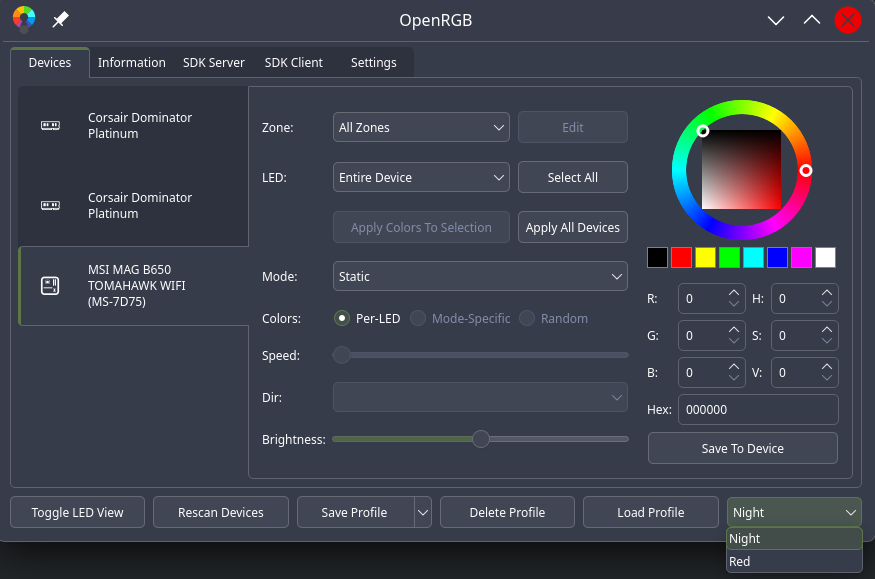
2. Next, you will need to test activating your profile from the command line. Open your terminal emulator of choice (I use Konsole), and type the following:
openrgb -p ProfileNameReplace “ProfileName” with the name of your profile. Since I named mine Night, mine looks like this:
openrgb -p NightNote that the “-p” flag just means “profile,” so you are telling it to use the profile named Night.
3. After you type the command, press Enter. If all goes well, it should change the color of your lights to whatever you specified in your profile.
4. Next, you need to create basic scripts for your profile commands. I’m not a coder, so feel free to make a better script or add suggestions. This just gets it done. Using the text editor of your choice, create a text file called “openrgb-night” or whatever you want to call it. Inside my file, I put:
#!/bin/sh
openrgb -p Night
You should be your profile name instead of Night.
5. Save the file and close your text editor. You then need to make your script executable. You can do this from the command line by typing:chmod a+x openrgb-night
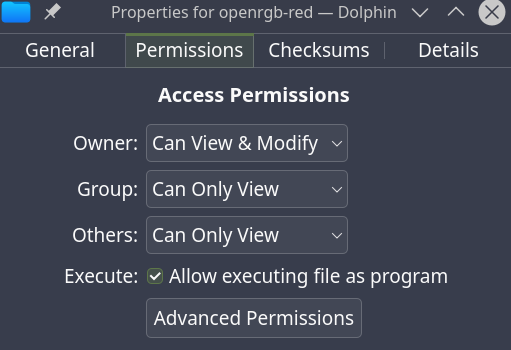
Alternatively, you can use your file manager to edit the permissions. In Dolphin, right click on the file, click properties, and click Permissions. Check the box next to “Execute” to “allow executing file as program.”
Scheduling
If you have made it this far, congratulations. You now have a script that does the exact same thing you could already do with the GUI. Believe it or not, that is actually useful, especially if you ever want to remotely change your lights. For example, you can add your script to KDE Connect and run it from your phone, but I digress.
To schedule your script to run at a certain time, you will need to use Cron. You can do this either from the command line or in Task Scheduler if you are using KDE Plasma. Since you are only doing user-level tasks here, you do not need to touch the system-wide Cron, only the one for your user.
Logged in as your local user account (not root), open your terminal and type:
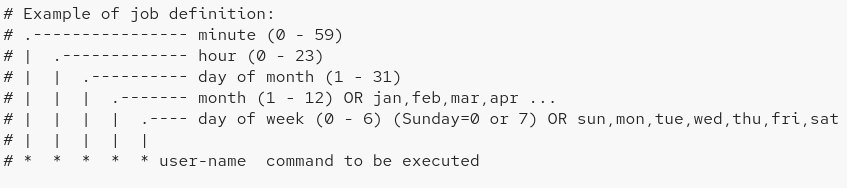
crontab -eThis will open up a text editor where you can edit the crontab. You are going to add two lines. The first line will just be the name of your job, and the second will have the schedule and path to the script. For example, I want my night script to run at 11:30 pm every night. My two lines will look like this:
#Turn off RGB at bedtime
30 23 * * *    /home/username/bin/openrgb-night
The first column with the “30” represents the minute of the hour. In this case, I want it 30 minutes after the hour. The second column of “23” is the hour of the day, 23:00 or 11:00 PM. The last three columns with * are Day (of the month), Month (of the year) and Day of the week (i.e. Sunday, Monday, and so on). Since I want it every day, I leave those as * to choose every day of the the month, every month of the year and every day of the week.
Once you’ve added your scheduled task, save and exit by typing:
:x
followed by the Enter key.
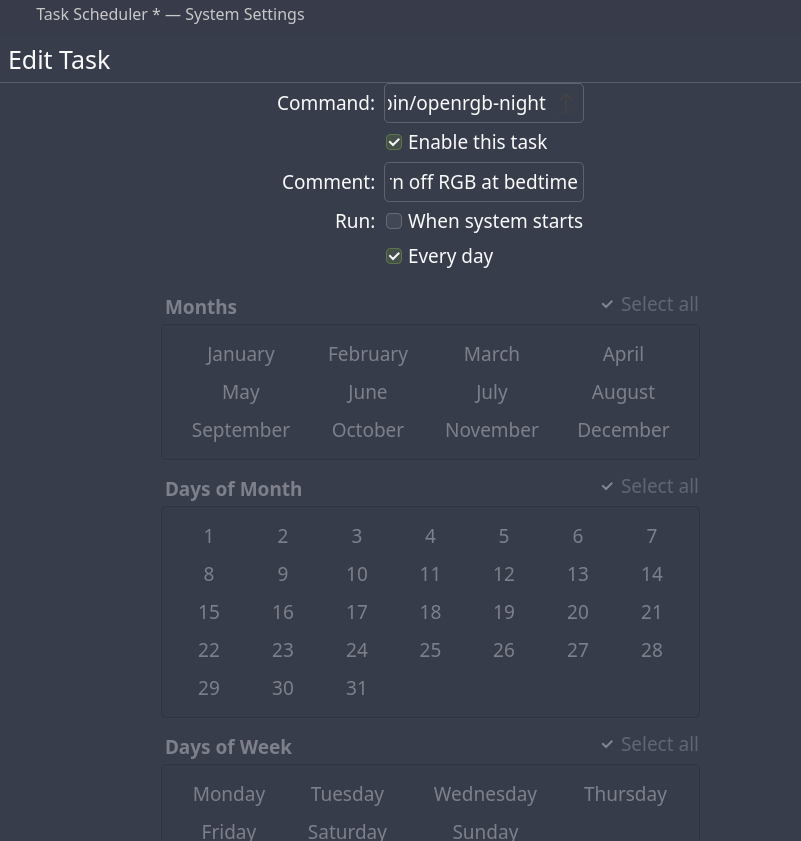
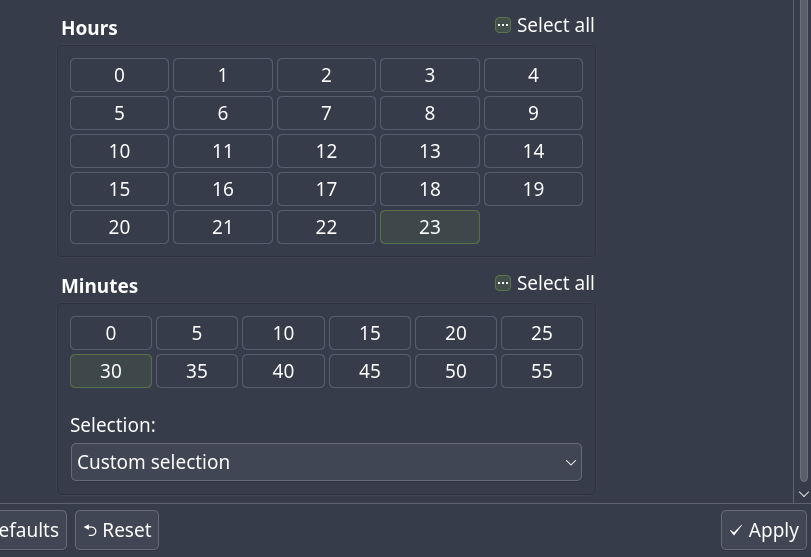
Configuring Cron using the Task Scheduler in KDE Plasma is pretty self explanatory, but here are screenshots that show you the interface:
Rinse and Repeat
You now have your RGB scheduled to turn off at night. You can repeat these steps with a “turn on” script to turn it back on in the morning. You also now know how to create any basic command script and schedule it to run in Linux.
Feature Photo Credit: Andy Holmes
Leave a Reply
You must be logged in to post a comment.